
Add-on · €59 a month
Warehouse
Warehouse is for a business that needs to know exactly where its stock is. You set up warehouses, zones and bins, and every receipt, transfer, pick, adjustment and shipment is written to a movement ledger, so quantities always come from what actually happened. It also holds Products, the recipes that turn your items into things you sell. It also covers per-client prices, damaged stock write-offs, vans that carry stock for your drivers, and a Statistics tab.

See it in one minute.
What it does.
Overview at a glance
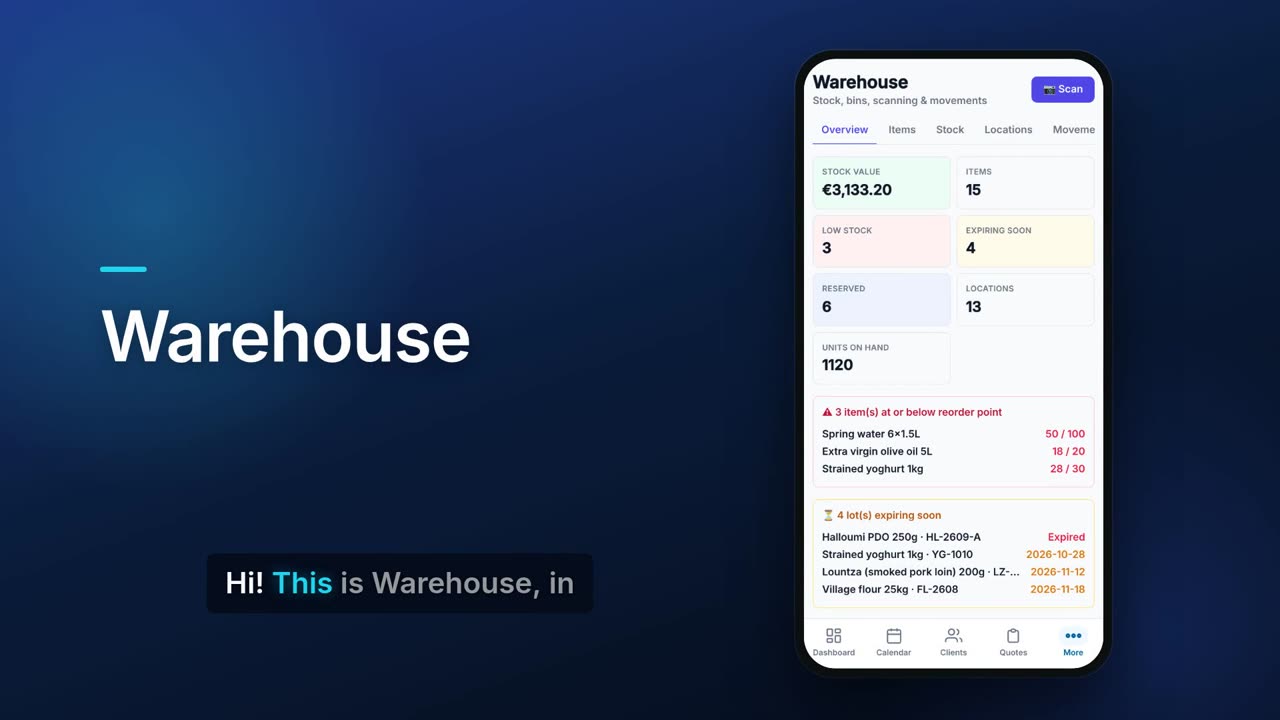
Stock value at cost, number of items, units on hand, low stock, lots expiring soon, reserved units and locations, with the latest movements. A Stock health bar counts your items as OK, Low stock, Expiring within 30 days or Has expired lots, each item once in its worst state.
Statistics for stock and sales
The Statistics tab shows stock now, with its value at cost and at selling price per location, and sales per day, month or year: quantity, gross sales net of VAT, cost of goods, profit, margin and top items. It also covers damages and van stock. Charts show stock value per location, sales per period and write-offs by reason; staff who cannot see prices see quantities instead. Every table exports to CSV and each section to PDF.
Reorder point alerts
A list of items at or below their reorder point, showing on hand against the reorder point.
Reorder list (with Purchasing)
With Purchasing on, a «To order» button sits next to every item, on the Items tab, the Stock tab, the low-stock and expiring lists and when editing an item, and «All on the list» adds every low-stock item at once. An item added from a Stock row is ordered for that row's warehouse, otherwise for your default warehouse. A «Reorder list» button opens the list in Purchasing, where the orders are made. Only the owner or a team member with the Admin role can change the list.
Lots and expiry dates
Track items by lot or batch and by expiry date. Lots expiring within 30 days, or already expired, are listed on the overview.
Earliest expiry first
When you pick or ship a lot-tracked item, Flow suggests the lot with the earliest expiry and its bin.
Expired stock only after a warning
Invoices, the till and product builds take in-date stock first. If only expired lots can cover the quantity, Flow lists the items with their use-by dates and asks whether to sell anyway. Yes sells them, records that expired stock was used and notifies you; No cancels and nothing is saved. Recurring invoices never stop to ask: they use in-date stock first, then expired, and you are notified. A daily notification and a banner on Warehouse list items with expired lots.
Any number of warehouses, with zones and bins
Run any number of warehouses, each with its own address and map position, and build a tree of zones, aisles, racks and bins under each, plus receiving, shipping and staging areas, each with a status and temperature. Choose a default warehouse in Settings, and filter the Stock tab by warehouse or by vans.
Ship from a chosen warehouse
An invoice names the warehouse it ships from, already chosen when you have only one, and new invoices start on your default warehouse. With more than one warehouse, a till or a phone order names it too. Invoices and tills then take stock only from that warehouse, earliest expiry first, and a delivery's distance fee is measured from it.
Seven movement types
Receive, Transfer, Pick, Ship, Adjust, Reserve and Release, each recorded with item, quantity, bins and what it was for.
Phone camera scanning
Scan a barcode or QR code with your phone. A known code opens Receive for that item; an unknown one offers to create the item.
Printable QR labels
Print QR labels for bins and for items.
Items with barcode, cost and price
Each item has an SKU, barcode, unit, cost, price, margin, reorder point and reorder quantity.
Static price or client price list
Set an item’s selling price type to Static price, one price for everyone, or From list, so clients on the list pay their own price. Their price is used on invoices, quotes, phone orders, the customer portal and at the till when their loyalty card is attached.
Client price table like a spreadsheet
The Client prices tab shows clients against items: type a price in a cell and Tab or Enter moves on, and a blank cell means the item’s own price. Import and export the table as CSV, with a preview of what will change. A price lower than the item’s standard price shows green, a higher one red, on screen only.
Non-stock items
Mark charges like electricity, water or a fee as no stock: they can be part of a product but are never counted or shown as low.
Stock counts
Start a count, type what you found next to what was expected, and apply the differences as adjustments.
Write off damaged stock
Record damaged stock from its location and lot with a reason (broken, expired, spoiled or other), a note and a photo, and it leaves stock. With the Accounting add-on set up, the loss at cost is booked in your books.
Undo write-offs, damages report
Undo a write-off and the stock goes back to the same location and lot, with any loss already booked reversed in Accounting. The Damages tab lists every write-off and reports them per day, month or year by reason and by item, with CSV export.
Vans as stock locations
Each van is a stock location and must have its driver, chosen from Delivery › Drivers. Load it from the warehouse with the earliest use-by lots first (expired lots are never loaded) and print a load sheet. Mark each load as orders for clients, filled from open delivery orders, or general stock. Give each van a home warehouse, and Load van opens on it. A van can also number its invoices and credit notes in its own series, such as ΒΑΝ1-0001.
Sell from a van, unload with a count
On an invoice, pick the van the stock comes from, or set a till that a driver uses on the road to sell from their van. A delivery marked Delivered takes its goods out of the driver's van. At the end of the day, count what is in the van and unload it, and any difference is recorded as a stock count. Each van card shows today's units as one bar: sold, back to the warehouse, written off and still on the van.
Van statement and My van card
A van statement shows opening stock, loaded, sold, returned, written off and the count difference for a period, with the sales value at the prices actually charged and at cost, and the driver's settlement: charged, cash handed over and still owed. A driver with a staff account sees a My van card with what is in their van and today’s loads, sales and returns, in quantities, with prices only as set in Delivery › Drivers.
Stock for projects
Issue stock to a project or job site and see the materials used and their value.
Stock out when you invoice
Issuing an invoice can take its matching items out of stock, and voiding it puts them back. You can switch this off in Settings.
Safe delete
Deleting an item or bin that still holds stock moves that stock to a quarantine bin first and tells you the quantity.
Excel import and export
Export your items with on-hand quantities to Excel, or import items from a sheet.
Real screens.
From the app, using a demo company.


Price.
Prices exclude VAT. Needs the Pro or Teams plan. See all CySo prices.
€59 / month + VAT
Warehouse is an add-on on the Pro or Teams plan, and Products comes with it. Warehouse replaces Inventory (only one stock system can be on), and switching moves your stock across. Yearly costs the same as 10 months.
Works well with.
Try Warehouse in CySo Flow.
Start on the free plan and switch modules on from inside the app.